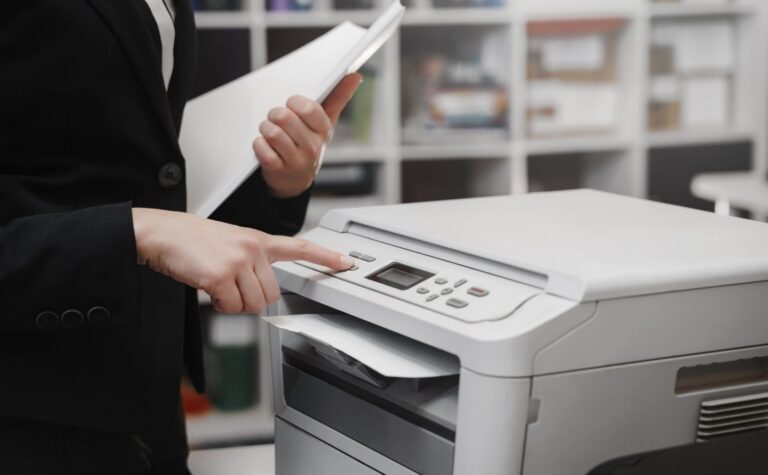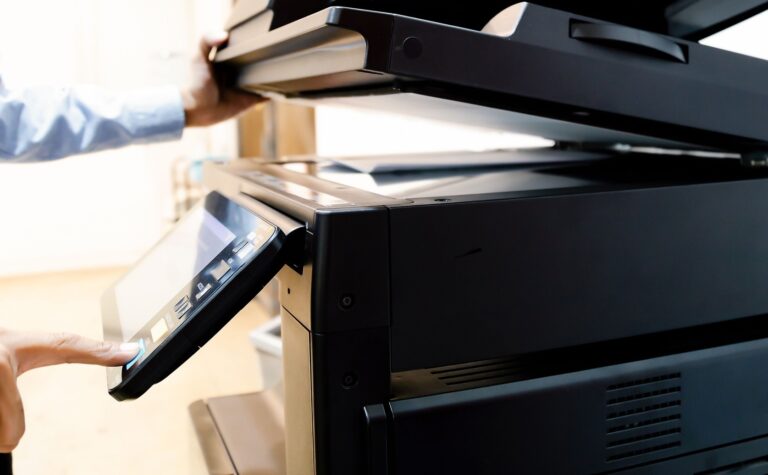
A bizhub tells you what is wrong; the skill is listening properly. Most of the faults that stop a South African office on a Tuesday morning announce themselves days earlier, in a message on the panel or a change in print quality. This guide walks through the error messages people actually search for, what each one means, the fixes that are safe to do yourself, and the point at which you should stop and call a technician. Each section gives the fix first, then the cutoff: the point where the machine is saying technician, not settings.
For drivers, manuals, admin-password guidance and the full error-code decoder, see the bizhub support hub.
The errors, one by one
“Toner filter needs to be replaced”
This message means the waste toner container, which collects spent toner swept out of the imaging process, has reached its capacity and must be replaced, not emptied and reused. It is a consumable with a part code like any other. Running past the message eventually stops the machine, and forcing it onward risks toner backing up into the imaging section. Order the correct container for your model, swap it when the message first appears, and reset the counter if the machine asks. When to call us: if the message returns on a fresh container, the machine is generating abnormal waste toner, which points at a deeper imaging fault.
Paper keeps jamming
A single jam is paper being paper. Recurring jams in the same spot are a wear pattern: pick-up rollers and feed tyres harden and glaze with age, guide plates shift, or a cassette is loaded with damp or curled stock. Open every cover the jam path crosses, remove the sheet in the direction it was travelling (never backwards through the fuser), and check the tray for fan-folded or wavy paper. If jams keep landing in the same location on fresh paper, the rollers in that section are due. When to call us: recurring jams at the same point, or any jam that leaves a fragment you cannot see or reach.
Drum life warnings
Drum and imaging-unit life messages mean the component that forms the image is approaching its rated count, and quality drift follows: faint areas, grey background, or repeated marks down the page. The unit is a consumable, replaced on schedule rather than repaired. Order the correct unit for your model when the warning first appears, because the machine will stop entirely once the counter ends, usually mid-deadline. If the office services its machines with us, this is a planned visit, not an emergency. Matching the replacement to the exact model matters here more than anywhere: imaging units are engine-specific. When to call us: visible quality faults before the counter ends, since early drum wear can point at a deeper fault worth diagnosing.
Fuser errors
Fuser codes, the C-3xxx family on a bizhub, mean the unit that bonds toner to paper with heat and pressure has reported a temperature or drive fault, and the machine locks to protect itself. The safe first move is the universal one: switch off at the main power, count ten seconds, switch back on. If the code returns, stop there. A fuser runs hot and its drive and sensors sit in the hottest part of the machine, which makes it exactly the wrong place for improvised repairs. Fuser units are also lifecycle parts: a machine deep into its page count will report fuser faults because the unit is due, not because anything else failed. When to call us: any fuser code that survives one restart, or any burning smell with it, which moves the booking from routine to today.
“Default password” login problems
The scenario: nobody can log in to the machine’s admin panel or its web interface, because the password was set years ago by someone who left. The factory default admin password for a bizhub is listed in Konica Minolta’s official documentation for the specific model; you reach the panel by typing the machine’s IP address into a browser. If the documented default no longer works, the password was changed, and guessing at service menus is how settings get lost. When to call us: a locked admin panel, since the technician works through it with the documentation rather than trial and error.
Scan-to-email failures
When scanning to email stops working but printing does not, the machine is usually fine and the mail path has moved: the provider changed SMTP settings, tightened security rules, or the office connection changed. Check the machine’s SMTP settings against the current ones from your mail provider, confirm the machine is on the network (print a configuration page), and test with a simple address. Many mail providers have shifted toward authenticated submission, which older SMTP settings do not match. A machine configured years ago is the usual casualty: the settings that worked at installation are not wrong, just outdated. When to call us: correct settings that still fail, or an office-wide change (new firewall, new provider) where the scan configuration needs rebuilding properly.
The cutoff, in one line
Restart once, clear the jam gently, replace the consumable the machine names, and stop when a code returns or a repair needs the machine opened beyond a paper path. Everything past that line is technician work, and pushing further converts repairs into replacements.
Between self-fix and technician sits one useful habit: note the code or message exactly as displayed, with the date. A technician told the machine keeps jamming starts from zero; a technician told the feed fault appeared twice this week, always from tray two, starts two steps in.
Book a service with our Randburg team: the form captures the model and the fault, so the technician arrives prepared. Businesses that would rather not wait for the failure can ask about bizhub vCARE, Konica Minolta’s automated meter reads and remote service care.